Website images
Reduce large photos before publishing. Set a maximum width when the source is much larger than its display size, then compare quality at the size your visitors will see.
Compress images by quality or target size.
A smaller image is easier to share. Pick the right settings for a website, an email or a form with a strict upload limit.
Choose JPG, PNG or WebP files, drag them into the tool, or paste an image. Add up to 20 files, each up to 20 MB and 24 megapixels.
Start at 80% quality for everyday sharing. For upload requirements, switch to Target size and set a maximum such as 50 KB, 100 KB or 200 KB.
Save compressed images individually, or download the results together in a ZIP.
Quality mode adjusts JPEG or WebP compression while keeping the original dimensions, unless you set a maximum width. It suits product photos, wallpaper previews and images shared by email.
Lower quality usually means a smaller file, but fine textures and text can soften. Check the downloaded file before sharing. If re-encoding the same format would make the file larger, the tool keeps the original.
Try quality compression ↑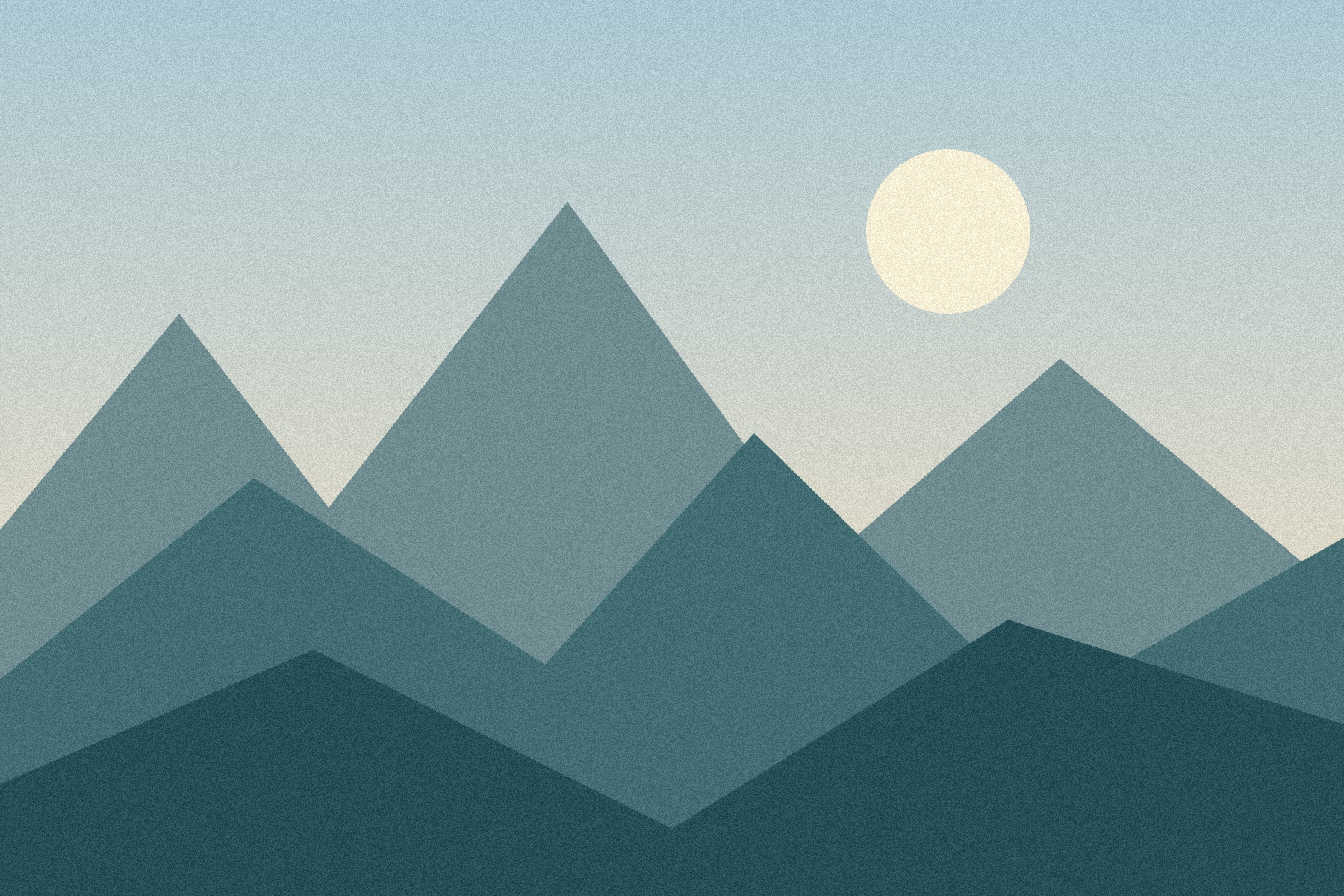 Original1.22 MB
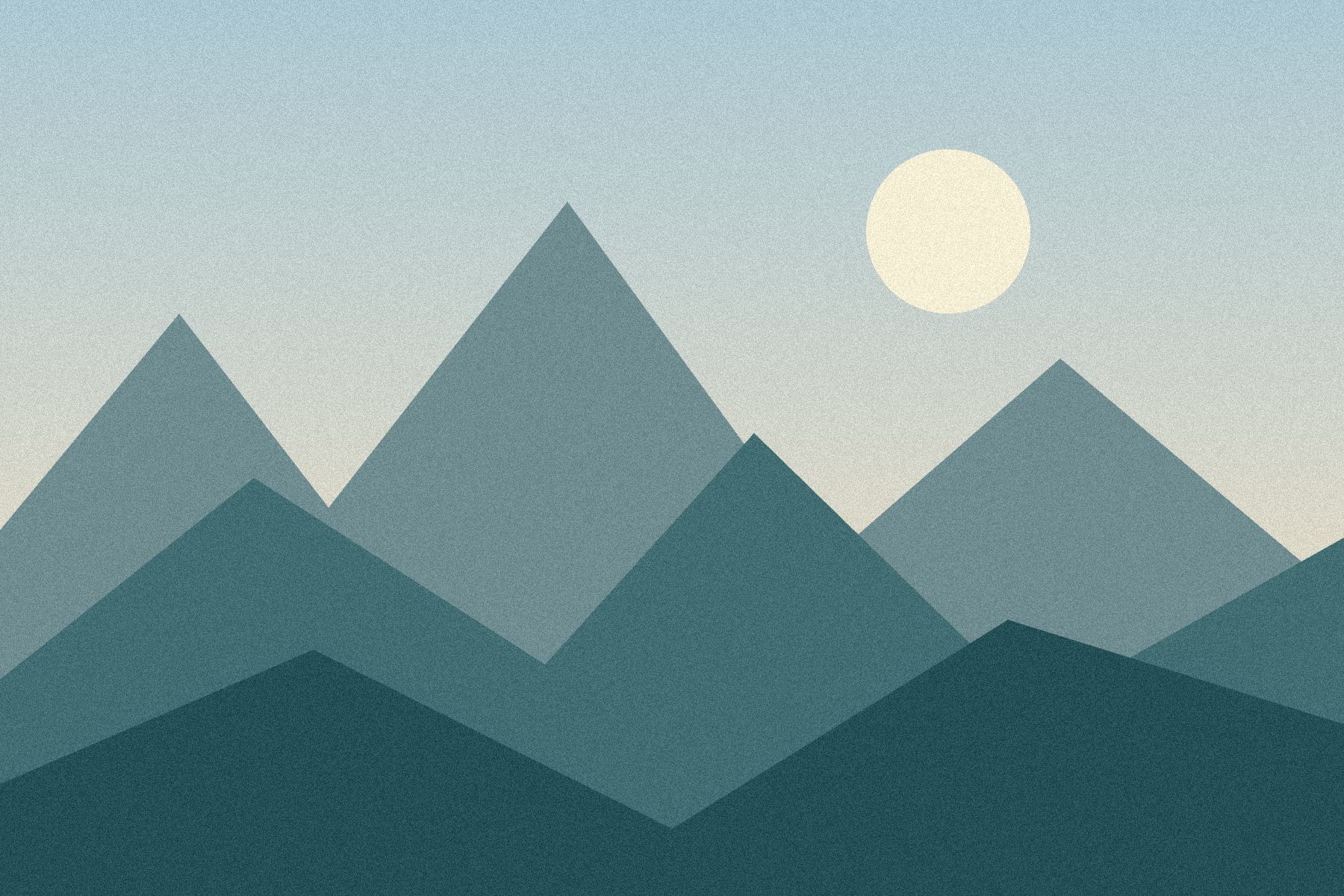 80% quality443 KB
Some forms accept only images below a fixed file size. Set that limit directly instead of trying different quality percentages by hand. The tool searches for the highest tested quality that stays within your limit.
If quality alone cannot reach the target, allow smaller dimensions. The tool then reduces the image proportionally. When resizing is off and the result is still too large, it tells you rather than marking the file as within the limit.
File limits use decimal KB: 100 KB = 100,000 bytes.
Set a target size ↑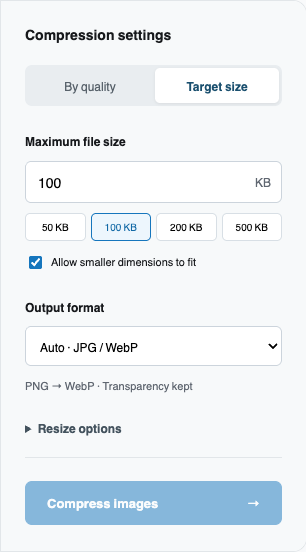
Format affects file size, transparency and where your image can be used. Here is what each option does.
| Input | Auto output | What to know |
|---|---|---|
| JPG / JPEG | JPG | A familiar choice for photos. Quality compression reduces size; transparency is not supported. |
| PNG | WebP | Converts to WebP for adjustable compression while keeping transparent areas. PNG output is not offered. |
| WebP | WebP | Keeps the format and transparency. Choose JPG instead when the destination requires it. |
Exporting to JPG fills transparent areas with white. Only static images are supported.
Reduce large photos before publishing. Set a maximum width when the source is much larger than its display size, then compare quality at the size your visitors will see.
Use a target size when a form specifies a file limit. Check both the file size and pixel dimensions required by the destination before submitting.
Apply the same settings to a batch of product photos or wallpaper previews. Save the compressed copies together and keep your source files for future editing.
No. Image decoding, compression, thumbnails and ZIP downloads run in your browser. Your selected images are never sent to a processing server.
Choose Target size, select 100 KB, then compress. The tool searches for a JPEG or WebP quality that fits the limit. Enable resizing if quality alone cannot reach it. Here, 1 KB means 1,000 bytes.
Upload static JPG, PNG or WebP images. Auto output keeps JPG as JPG and converts PNG to WebP to retain transparency. Animated PNG and WebP are rejected so their animation is not lost.
JPEG and WebP compression can remove detail. Check the downloaded image before using it. In quality mode, an original file is kept when re-encoding would make it larger.
Yes. Add up to 20 images, with a maximum of 20 MB and 24 megapixels each. Images are processed one at a time to limit memory use. Download separately or together in a ZIP.
No. Compression changes how image data is encoded. Resizing changes pixel dimensions. Quality mode preserves dimensions unless you set a maximum width. Target size mode can reduce dimensions when you allow it.
This tool accepts PNG input but exports it as WebP or JPG. Choose WebP to keep transparency. If your destination only accepts PNG, keep the original PNG file or use a dedicated PNG optimizer.